Game Guides
Roblox Parental Controls: Spending Limits, Chat, Screen Time
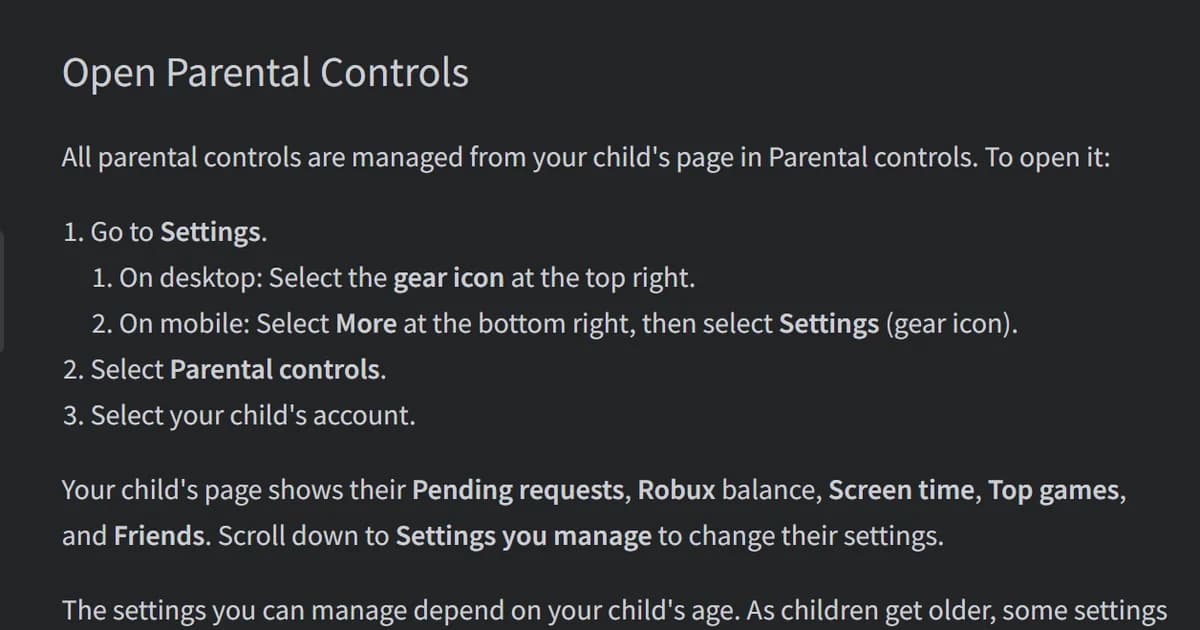
You can run Roblox parental controls from a parent account linked to your child's or, where Roblox has rolled it out, from Parent mode on your child's own device, and two of the biggest ones end at 13. So the job is to pick your way in, then make four choices: money, chat, games and time. From 13, Roblox's own help page says "spending limits no longer apply."
Checked Oct 16, 2026 against Roblox Support's own pages. We did not test these settings on a child's account.
TL;DR: Link your account to your child's (or use Parent mode on their device), then set a monthly spending limit and switch chat to what you're comfortable with. The default spending limit is "No limit," and chat that a game builds for itself is not covered by Roblox's switches.
Key Takeaways
- Two ways in: a linked parent account, where every control sits on your child's page in Parental controls, or Parent mode on your child's device.
- Linking needs an adult check: Roblox asks you to verify your age "using a government-issued ID or credit card."
- Money: a monthly limit "between 0 and 10,000" in your local currency. The default is "No limit."
- Chat: under 9, experience chat needs your consent. Under 13, direct chat does too.
- Age 13: spending limits stop, and your child takes over screen time limits and blocking.
Overview: what Roblox parental controls cover
Roblox parental controls cover five things: which games your child can join, who they can chat with, how much money they can spend, how long they can play each day, and who their friends are. With a linked account, all of it lives on one page. Roblox says "If you have a linked parent account, all parental controls are managed from your child's page in Parental controls."
That page shows your child's pending requests, Robux balance, screen time, top games and friends. The settings sit lower down, under Settings you manage.
What you can change depends on your child's age. Roblox puts it plainly: "As children get older, some settings move from the parent to the child." The account type changes with age too. On Roblox Kids, for ages 5 to 8, "Access will be limited to games with a Minimal or Mild content maturity rating that have passed our three-step selection process for content to be allowed." At 9, on Roblox Select, children can reach games rated Moderate.
There are two ways in. Roblox's page lists linking your own account, so you can "Manage settings from your own device at any time", and Parent mode on your child's device, where "You don't need your own Roblox account." Parent mode "is rolling out gradually and may not be available to everyone yet." It also can't send you spending alerts: those "need a linked parent account." That is why step 1 links the accounts.
Step-by-Step: set up Roblox parental controls in six moves
1. Link your account to your child's. On your child's account, go to Settings, open Parental Controls and select Add parent. Roblox then asks you to verify your age with a government-issued ID or credit card. Once the page refreshes, select Agree. If Roblox already emailed you asking for permission, the link in that email does the same job. The payoff, in Roblox's words: "By linking your account to your child's, you can view and update parental controls for your child all from your own device."
2. Set the monthly spending limit. From your own account, go to Settings, then Parental controls, pick your child and open Spending restrictions. You can "enter an amount between 0 and 10,000." The default is No limit. The limit resets at the end of each calendar month and does not roll over. It is set in your local currency and "may not apply on certain console devices." One more gap: "This limit does not impact gift card redemption."
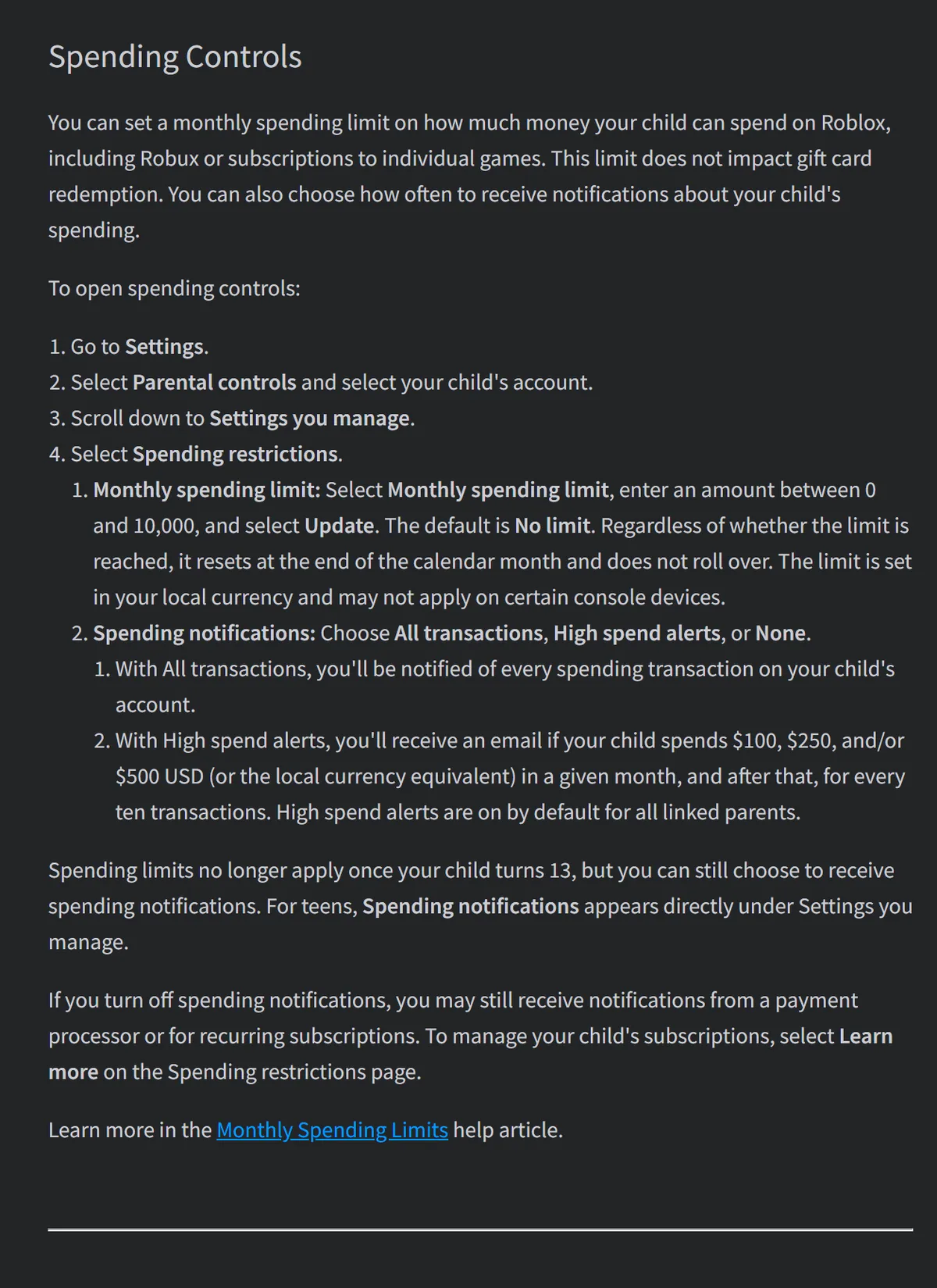 Image: Roblox Support, Parental Controls Overview (screenshot, Oct 14)
Desk note: Game passes are only part of a game's store. Steal An Egg, #1 on Roblox's chart when we checked at 14:14 UTC on Oct 14, listed 2 game passes for sale (399 and 467 Robux) and 109 developer products, the kind you can buy again and again. That count is from our tracker's read at 16:14 UTC the day before. The Steal An Egg store page and Brookhaven RP's list them.
3. Pick your spending notifications. On the same screen, choose All transactions, High spend alerts or None. High spend alerts send an email if your child spends $100, $250 and/or $500 USD (or the local equivalent) in a month, then every ten transactions after that. Roblox says "High spend alerts are on by default for all linked parents." All transactions is the stricter choice: you're notified of every spending transaction.
4. Decide on chat. Open Communication. There are two main switches. Experience chat lets your child chat with trusted friends and people in similar age groups playing the same game. Direct chat goes further, to "people who are not their friends." The age rules: "Users under the age of 9 require parental consent to enable experience chat." And "Users under the age of 13 require parental consent to enable direct chat."
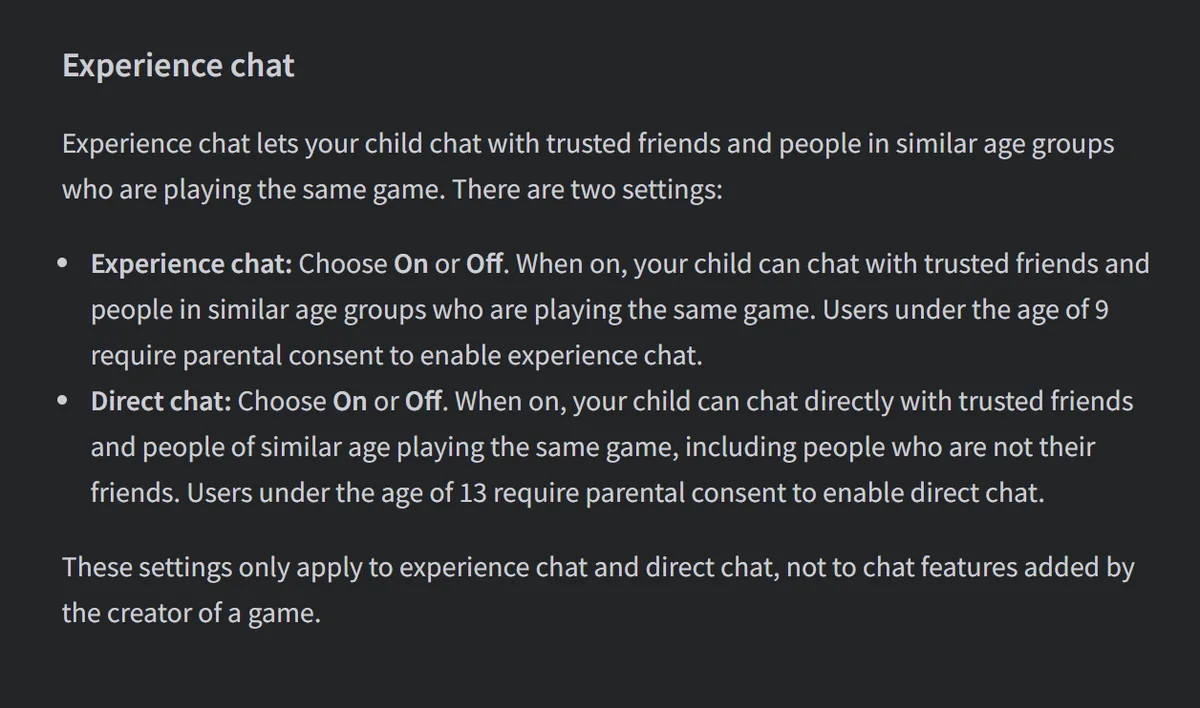 Image: Roblox Support, Parental Controls Overview (screenshot, Oct 14)
Read the last line under those switches twice: "These settings only apply to experience chat and direct chat, not to chat features added by the creator of a game." Below them, Friends chat lets you choose all friends, trusted friends or no one. Children under 13 also need your permission to add a trusted friend.
5. Choose a content maturity level, then block or allow single games. In Content restrictions, move the slider to Minimal, Mild, Moderate or Restricted. Roblox describes Minimal as "occasional mild violence, light unrealistic blood, and/or occasional mild fear," and Mild as "repeated mild violence, heavy unrealistic blood, mild crude humor, and/or repeated mild fear." Restricted games are only for age-checked users 18 and older. Games rated Content May Vary sit outside the slider, and in most regions they are only for age-checked users 16 and older.
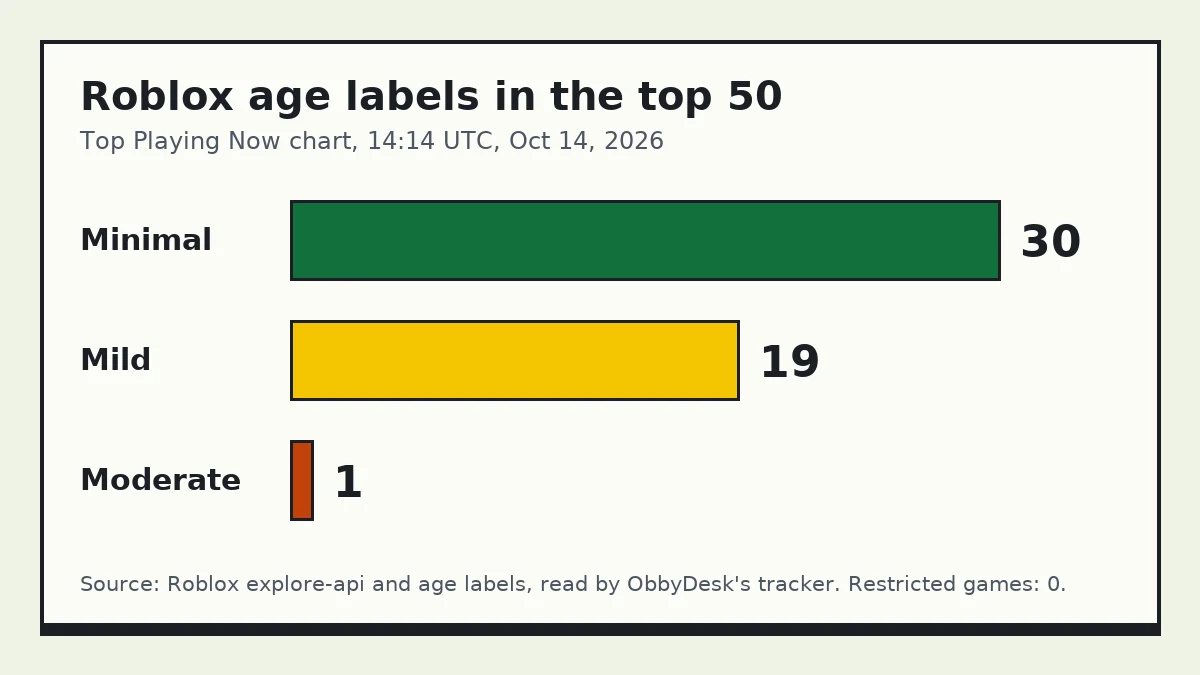 Chart: ObbyDesk, from Roblox's Top Playing Now chart and age labels (14:14 UTC, Oct 14)
Desk note: At 14:14 UTC on Oct 14, our tracker read Roblox's top 50: 30 games were Minimal, 19 Mild and 1 Moderate (Murder Mystery 2, #7). None were Restricted. So a slider set to Mild still lets in 49 of the 50 most played games, by label alone. Our pages for Minimal, Mild and Moderate list them with Roblox's own definitions.
A label describes the content, not the other players. That's why the single-game block matters. Roblox's wording: "Block a game to prevent your child from joining it, regardless of its content maturity level." Open Blocked games, select the + icon, search for the game and select Block twice. Two catches: "Blocked games will still appear in search results," and a block made mid-game only works "the next time they enter the game." Allowed games works the other way, for a game your child asks you to let through.
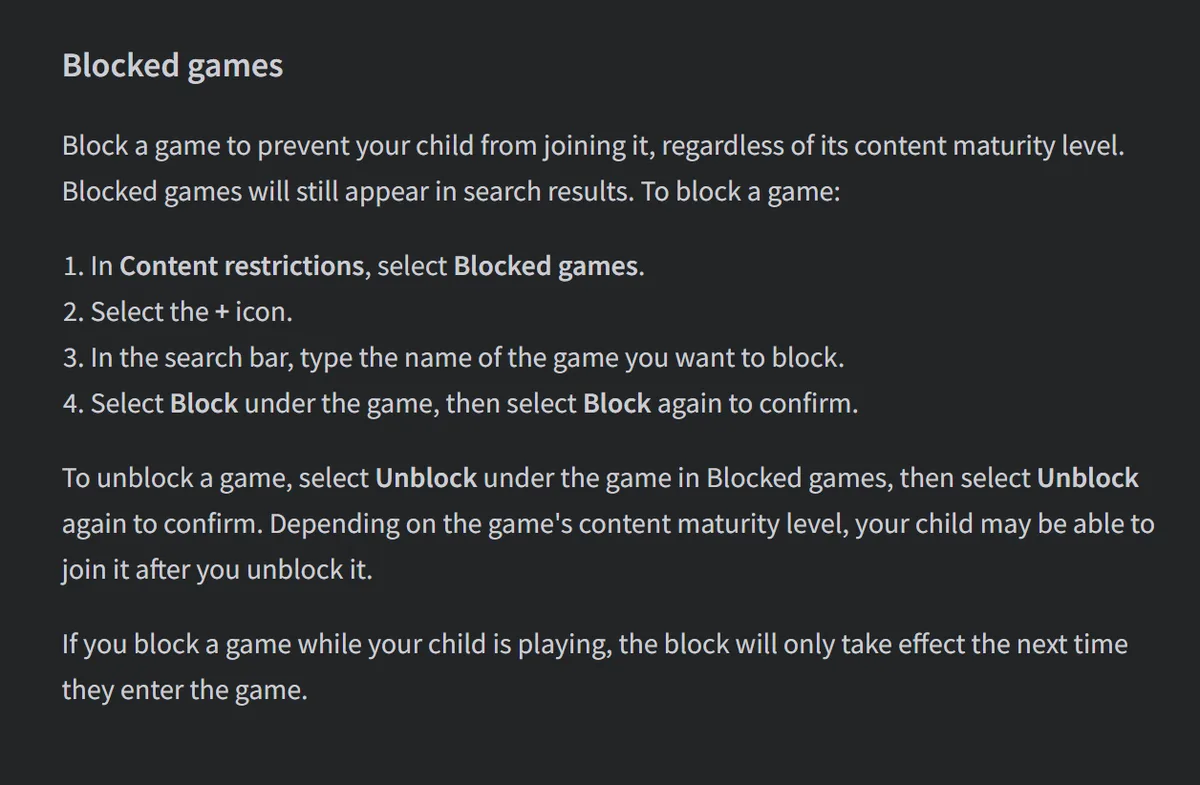 Image: Roblox Support, Parental Controls Overview (screenshot, Oct 14)
GODEEPER: Fear is the label parents ask about most in October. See how 14 big horror games sit on Roblox's fear descriptors, from mild to scary. Best Roblox Horror Games: 14 Ranked From Mild to Scary →
6. Set a daily screen time limit. Scroll to Screen time on your child's page and select Manage. You can choose "No limit or a limit in 15-minute increments." When your child hits the limit, Roblox shows a message and they can't use Roblox for the rest of the day. The same panel charts the last seven days and lists your child's top 20 games from the past week. Turn on Activity updates for a weekly email with that summary.
Tips: the settings most parents miss
Robux transfers have their own limits. Your child can send Robux to trusted friends. By default, Roblox caps that at 500 Robux a day and 1,000 a month. Under Approvals, "Always ask" means you approve every transfer yourself.
Answer requests from your inbox. Your child can ask you to change a setting, such as allowing one game. The request email has a View Settings button, then Allow or Don't Allow. No need to log in to their account.
Plan for 13 now. At 13, your child manages their own screen time limits and blocking, and spending limits stop. You stay linked, though. Roblox says you can still manage direct chat, allow or block specific games, add Robux, and see screen time, top games, friends and their Robux balance. At 18, the accounts unlink by themselves.
Free Robux is never real. Roblox's own line: "There is no such thing as free Robux or subscription offers, tricks, or codes." Real game codes come from the developer, never from a site that asks for a password. Our list of games for younger kids repeats that rule for every pick.
GODEEPER: Real codes look like this: two words from the developer's own game page, with a date on them. See what Bubble Gum Simulator's developer lists. Bubble Gum Simulator Codes →
Hide what others can see. Under Visibility & private servers, you can limit who sees your child's online status and current game to friends, trusted friends or no one. Private servers can be set to friends or no one.
What parents say
On r/Parenting, a thread from October 2025 asked other parents for their take on Roblox for young kids. The answers split, and they're worth reading side by side.
One parent described a strict setup: "No voice or chat allowed at all and my youngest has to ask me before he can try any given game and we play it together first." (Reddit, Oct 31, 2025). Another said they stopped their daughter playing several years ago "because you couldn't block chats." (Reddit, Oct 31, 2025). That part has changed: experience chat and direct chat now each have an Off switch.
Our take
Link the accounts this week, set a spending limit, and keep chat off until you've talked it through. The spending default is "No limit," and the limit stops applying at 13, so it does most of its work in the years before that. A label is not a guest list: 30 of the top 50 games were Minimal when we checked, and Roblox's chat switches still skip chat a game builds for itself.
What we don't know yet: Roblox says the spending limit "may not apply on certain console devices" but does not name them.
Our view, from the sources in this article.
How we checked this
We read five Roblox Support pages on Oct 14: Parental Controls Overview, Parents: How to Link Your Account, What happens as my child or teen gets older on Roblox?, Content Maturity Ratings, and Free Robux or Subscription Generators. We read them again on Oct 16, after Roblox added Parent mode and reworded the linking lines, and every Roblox quote above matches that day's text; the screenshots are from the Oct 14 visit. The top 50 counts come from ObbyDesk's tracker, which reads Roblox's Top Playing Now chart and each game's age label. The store counts come from the same tracker. Parent comments are from a public r/Parenting thread, read through Reddit's public feed on Oct 14 and an archive copy on Oct 16, and quoted without usernames. Roblox rewrites these pages often: the chat and blocking wording changed between Oct 11 and Oct 14, and Parent mode appeared after that.
Related Reading
- Most played Roblox games right now: the live top 50 with each game's age label.
- Best Roblox games to play with friends: games built around playing with people your child already knows.
- Steal An Egg beginner guide: what the #1 game on the chart asks players to do.
References
- Parental Controls Overview, Roblox Support
- Parents: How to Link Your Account, Roblox Support
- What happens as my child or teen gets older on Roblox?, Roblox Support
- Content Maturity Ratings, Roblox Support
- Free Robux or Subscription Generators, Roblox Support
- Steal An Egg on Roblox
- r/Parenting: What's your take on Roblox for young kids?
Was this guide helpful?
About the author

The ObbyDesk desk
We read the update notes, check Roblox's own numbers, do the math and tell you what's worth your time. We don't play-test every game, and when we can't confirm something, we say so.
Keep reading

Creative Roblox Games for Kids: 7 Picks to Build and Design
Lists · 7 min
Roblox Games for Younger Kids: 11 Suitable for Everyone
Lists · 9 min
Fish It Roblox Guide: Rods, Islands and the Next Update
Game Guides · 6 min
Keyboard Escape Roblox: Speed, Rebirth and Halloween World
Game Guides · 6 min
Berry Avenue Roblox Guide: Jobs, Houses, Codes and Safety
Game Guides · 6 min
99 Nights in the Forest Halloween 2026: Live to Oct 24
Game Guides · 6 min
Steal a Brainrot Guide: Buy, Steal, Rebirth and Stay Safe
Game Guides · 6 min

Forsaken Roblox Guide: Roles, Rounds and Helperbot Update
Game Guides · 6 min
Independent, no ads
ObbyDesk is not affiliated with, endorsed by or sponsored by Roblox Corporation or any game developer, and nobody pays for coverage. There are no ads and no affiliate links. Codes come only from the developer's own channels. We write with AI tools and match every fact to its source before it goes up. Prices, odds and event dates change with updates, so check the game itself before you spend Robux. More on our independence, how we check and how we use AI.